During the day you might come across various different problems, ranging from unknown items to a product with no barcode.
To locate or check stock, you can use the process below:
- Press PROD ENQ
- Select search method (shown below) by pressing the corresponding key on the keypad below the “SELECT SEARCH METHOD” list.
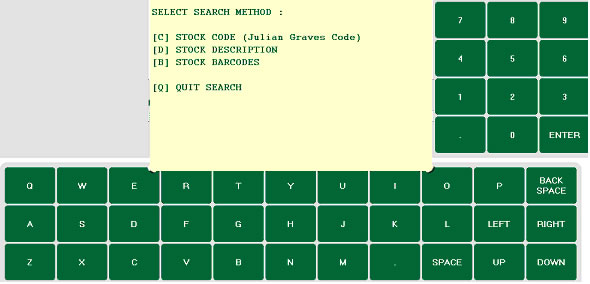
[C] Will allow you to search stock codes, which appear on all delivery notes. You will need to type in all or part of the code.
[B] Will enable you to can scan the item directly or alternatively, type in the whole barcode.
[D] Stock description is perhaps the easiest method to use. The search will look for any part of the description that matches. Try to be as specific as possible and not too vague for instance APR will bring up Apricots but also Paprika too.
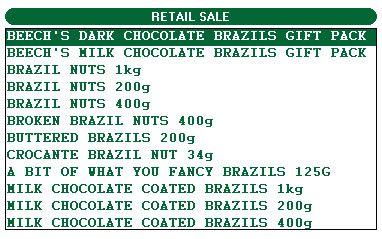
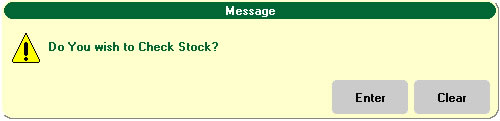
The list can be navigated using the up and down buttons on the screen on the right of the main keypad. You can also drag your finger across the screen up or down to search in that direction. When the desired item is pressed and highlighted, press ENTER. The till will prompt if you wish to check stock quantity by pressing ENTER. If you press CLEAR at this prompt, the till will display the price of the item and the promotion status without stock quantities.
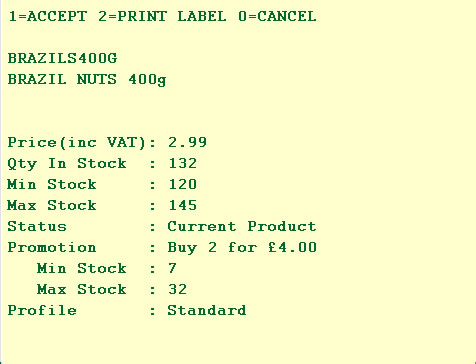
The till will display after a couple of seconds, the product details including Your Min/Max levels as set by the Retail Stock team at Head Office, whether a product is on MULTIBUY, stock quantity at branch and the product status. This will tell you if an item has been discontinued, put on hold or being run down.
To accept this item as part of a sale you should press 1 or press 0 to cancel.
Press 2 to print a temporary shelf edge ticket with a barcode
As the till has the same files as head office there should be plenty of information on every product however, suppliers do change things like packaging.
Sometimes the barcode on a product which is accepted may leaves the warehouse and arrive at your shop without having been first put onto the system. When it turns up in store it is unlikely to be spotted until a customer tries to buy it. If so you will have to go through the following…
When an item is scanned that is not recognized, the following error message will appear.
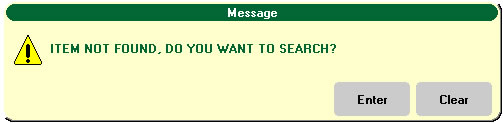
You then have the option to search for the product pressing ENTER or to press CLEAR and either rescan or remove from sale.
If you decide to try and search for the item and succeed it will bring it up in the usual way. The till will report back to us that a new barcode has been spotted and we can update the files for everyone.
If you are unsuccessful in searching for an item you will see the following message.
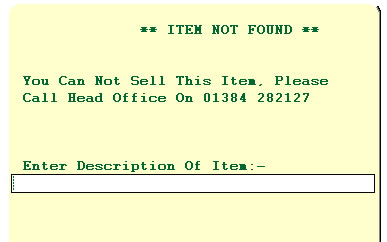
You will not be able to sell this product without further assistance. To enable us to investigate further you are asked to enter a description this is reported back that evening. Please be as specific as possible so we can identify the product as quickly as possible.