To copy files using EPOS You first of all need to check that the files created to send to the tills are up to date. These are created each night and located in P:\Sx\Sxco1\Paypoint There are a total of 19 files that need to be sent. They include all the .txt files which are for all stores and 3-4 branch specific files which take care of the multibuys (.mbp, .mbr,.mby) and store specific files (.pri)
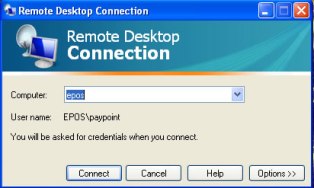
To use EPOS you either need to use DameWare or Remote desk top connection to get on to the server. The i.p address is 192.168.98.75 or type EPOS
Once on the EPOS server you need to open up the support utillity called Launch Pad.
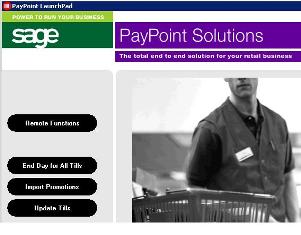
From there you need to click on Store Procedures, Update Tills. Here you will get a message asking if you want to update all tills press the Enter button.
If you want to send to a single shop Press the Clear button and then from the list select the shop you wish to update.
N.B All tills are updated individually so if a shop has two tills you will need to repeat the process for each till.