Once you have selected which downloads to send to the till via the WebCom application you need to get on to the till either via Dameware or inperson .
N.B These instructions assume that you are still in the Paypoint till screen. If not then you will be able to go Start,All programs,Commidea Ocius 4 PC.
You will probably need the use of a mouse and a keyboard to do this. Press the windows key to bring up the Windows task bar. Double click on the Ocius Icon (remember it may be hidden) to bring up the Ocius screen.
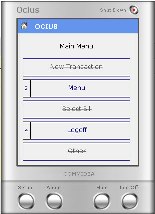 |
Press the Logoff button and confirm you wish to log off. This screen may disappear, if it does double click on the Ocius icon again to bring up the login screen. Log back in as the shop, this will allow you to then click onMenu, System, Download. Ocius will prompt If you want to download? Press Yes. Once the download has completed Ocius will shut down. You will need to restart Paypoint if you have not already exited the till software. |