If you want to sent a till update follow the instructions here.
Setting Up a Shop in LaunchpadWhen a shop opens it needs to be set up on Launchpad so it is included in the nightly update routine.
Log into the EPOS server and double click the Launchpad icon.
On the administration menu click Till Options then Till Locations.
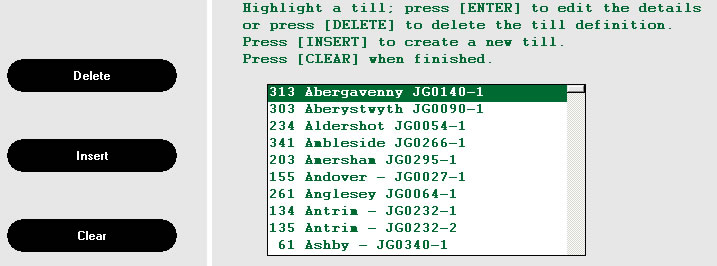
From the screen above Click Insert. and add the new till number sequentially eg if the last till is number 50 this one will be 51.
N.B By defult Launchpad always starts with Till Number 1. This means that if left Till 1 (Loughborough) will be over written. Make sure you know what the next Till Number is or Pick a high number if you're unsure. |
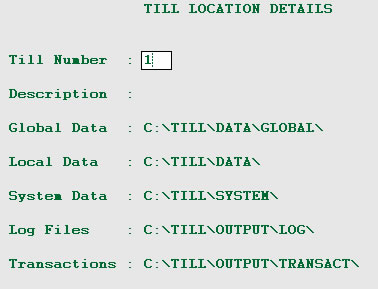 |
Enter the description as follows Julian Graves Store JG*** - 1 for till number
if they have 2 till has to be done twice.
Click Done
There are 5 fields which need to be filled in. To make life easier it's better to edit it in excel.
Click start-run and enter
\\epos\jgv602\ppl\data\tills.dbf to edit the till file.
Copy the row from above and past to the one just created, Highlight the new row and use the Find and replace function (Ctrl + H) to change the ip address. There should be 5 replacements made per row.