The WebCom Utillity is used for managing the Ocius Estate. From here we can search on transactions, send software and account updates and other useful things.
WebCom is browser based and can be got to from anywhere with an internet connection. In your browser go to https://www.commideaweb.com/Default.aspx This can be saved in your favourites for use in the future.
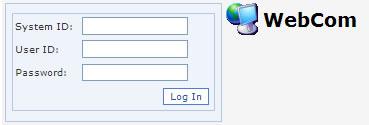
You will be presented with this window where you need to log on.
The System ID is: 7420 The User ID is: julian The Password is: jgraves1*3 |
 |
|
|
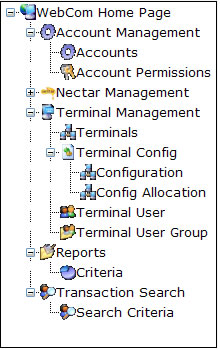 |
Once successfully logged in a menu will appear down the left side of the screen. The two most commonly used options are Search Criteria under the Transaction Search option This is used for searching on Card transactions at single or multiple locations. The other is Terminals found under Terminal Management. This is for sending software/account updates and general estate management. |
Transaction Search
On the Transaction Search Window there are lots of options. Assuming you want to search on a single shop, uncheck the PTID box in the top Right of the window. The screen will refresh and the drop down box to it's right willbecome active.
The drop down list containes all the PTID (Pin pad Terminal ID) numbers. This can be found on any till card receipt usually marked up as something like P:PC123180
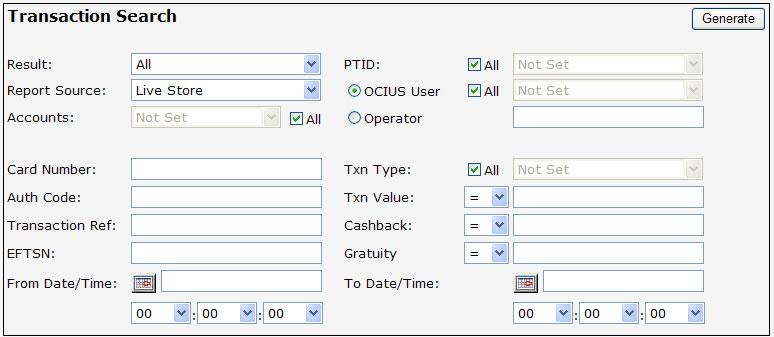
Now you have the shop you need to select the Date and time range by filling in the From Date/Time and To Date/Time boxes at the bottom of the screen.
N.B If you leave this blank the search will include ALL Card transactions ever done.
Terminal Management
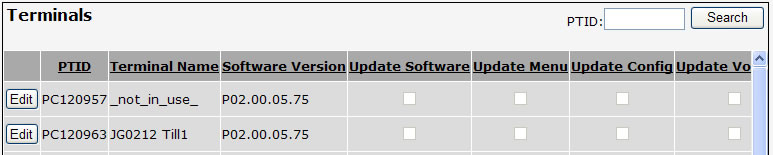
At the moment WebCom will not allow you to do a select all function so shops have to receive their updates individually. Finding shops here is easier as they are marked up in the example above. If you click on the title of the coloum (Terminal Name) you can then search more easily as the list will default to instillation order.
Once you have found your shop click on the edit button on the left to open up the update options. Check the boxes you need then save and exit. It is at the till in the shop that you will have to download the updates you have selected. Click here to find out how.